How to Migrate Without Affecting Lead Tracking
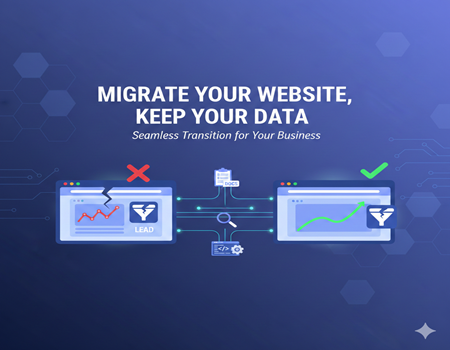
Website migration is an exciting step for any business. You might be upgrading to a new CMS, redesigning your website, improving speed, or moving to a better hosting server. Sometimes migration is done to improve SEO performance. Sometimes it is done to improve user experience. Whatever the reason, migration usually feels like growth.
But there is one major concern that most businesses overlook — lead tracking.
Your website is not just a design asset. It is your lead generation engine. Every form submission, demo request, phone call, or WhatsApp click represents potential revenue. If tracking breaks during migration, you may continue receiving leads but lose visibility of where they are coming from. That means you cannot measure campaign performance, optimize ads, or make data-driven decisions.
This is where many companies face problems.
During migration, small technical changes can disrupt tracking systems. Tracking codes may not be reinstalled properly. Google Tag Manager may not fire correctly. Thank-you pages may change. Event triggers may stop working. Even a small URL change can break conversion goals in analytics tools.
The result? Your reports suddenly show zero conversions. Marketing teams panic. Ad budgets get questioned. SEO performance becomes unclear.
The truth is, website migration does not automatically damage lead tracking. Problems happen only when tracking is not planned properly during the transition.
With the right strategy, documentation, testing, and monitoring, you can migrate your website smoothly without losing any lead data.
In this guide, you will learn exactly how to migrate without affecting lead tracking, using practical steps explained in simple language.
What is Website Migration?
Website migration simply means making major changes to your website that affect its structure, technology, design, or location. It is more than just editing content or updating a few images. Migration usually involves technical changes that can impact SEO, performance, and tracking systems.
One common type is CMS migration. This happens when you move your website from one content management system to another. For example, shifting from WordPress to Webflow, or from a custom-built CMS to Shopify. Businesses usually do this to improve flexibility, speed, security, or ease of management.
Another type is domain migration. This means changing your website address, such as moving from oldbrand.com to newbrand.com. This directly impacts SEO and tracking because URLs change.
There is also design migration, where the entire layout and structure of the website are redesigned. Even if the CMS remains the same, changes in page structure, forms, and thank-you pages can affect tracking.
Some companies also go through server or hosting migration, where the website moves to a different hosting provider for better speed or reliability. While this sounds simple, it can still impact tracking scripts if not handled carefully.
Businesses migrate for many reasons. They may want better performance, improved user experience, modern design, stronger SEO capabilities, or easier content management. Migration is often a growth decision.
However, because migration involves technical changes, it can unintentionally affect analytics tools, tracking codes, conversion goals, and CRM integrations.
That is why understanding what migration really involves is the first step toward protecting your lead tracking system.
Why Lead Tracking Breaks During Migration?
Lead tracking usually breaks during migration because small technical elements are either removed, changed, or not configured properly on the new website. Most businesses focus on design, speed, and SEO, but forget that tracking works in the background and needs special attention.
One of the most common reasons is that tracking codes are not reinstalled correctly. Tools like Google Analytics 4, Google Tag Manager, Meta Pixel, or Google Ads conversion tags must be added again on the new website. If even one script is missing, conversions may stop recording.
Another common issue happens when Google Tag Manager containers are not migrated properly. GTM works based on triggers and events. If the structure of forms or buttons changes during migration, the old triggers may no longer fire. For example, if a form ID changes, the tag connected to that form will not activate.
Thank-you pages are another major problem area. Many websites track conversions based on a specific thank-you URL. If the URL changes during migration and analytics goals are not updated, conversions will show as zero even if leads are coming in.
Form structure changes can also break tracking. Developers may rebuild forms with different fields, new submission methods, or AJAX-based submissions. If event tracking was connected to the old structure, it will stop working on the new version.
Cross-domain tracking can also fail. If your website connects to third-party booking tools, payment gateways, or subdomains, migration can interrupt how sessions are tracked across domains. This leads to inaccurate reporting.
Cookie consent tools can also reset tracking permissions. If consent banners are reconfigured incorrectly, tracking scripts may not fire at all.
Sometimes the issue is not that leads stop coming. The issue is that tracking stops recording them. That creates confusion. Marketing teams think performance has dropped, while in reality, the data is simply not being captured.
Types of Lead Tracking That Can Be Affected
When a website migration happens, different types of lead tracking can be affected. Many businesses only think about contact form submissions, but in reality, several tracking points may break if not monitored carefully.
The most common one is contact form tracking. If your website collects inquiries through a form, the tracking may rely on a thank-you page or a button click event. If the form structure changes or the thank-you URL is updated, conversions may stop recording.
Call tracking is another sensitive area. Some websites use dynamic phone numbers that change based on traffic source. During migration, if the script managing those numbers is not reinstalled properly, calls may not be tracked correctly.
WhatsApp click tracking can also be affected. Many businesses track clicks on WhatsApp buttons as conversions. If the button class name or link structure changes during redesign, the tracking trigger may fail.
Demo bookings and appointment forms are critical for SaaS and service businesses. These forms sometimes redirect to third-party scheduling tools. Migration can break cross-domain tracking, which results in incomplete conversion data.
E-commerce inquiry forms or add-to-cart events can also stop firing if the product page structure changes.
Paid advertising tracking is highly vulnerable. Google Ads, Meta Ads, and other platforms rely on conversion tags to optimize campaigns. If those tags stop firing, your campaigns may continue spending money without proper optimization data.
CRM integrations are another important area. Many websites send lead data directly into a CRM. If API connections or webhooks are not configured correctly after migration, leads may not be recorded inside the system.
In short, migration does not just affect one type of tracking. It can impact every touchpoint where users interact with your website. That is why every conversion action must be audited and tested carefully before and after migration.
Pre-Migration Checklist to Protect Lead Tracking (500 Words)
Before starting your website migration, preparation is everything. If you plan properly, you can protect your lead tracking system and avoid data loss. This checklist will help you migrate safely without affecting conversions.
1. Audit Your Existing Tracking Setup
The first step is to understand your current tracking system clearly. Many businesses do not even have full visibility of what is being tracked.
Start by listing all tracking tools installed on your website. This may include Google Analytics 4, Google Tag Manager, Google Ads conversion tracking, Meta Pixel, LinkedIn Insight Tag, call tracking software, heatmap tools, and CRM integrations.
Next, review all conversion events inside GA4. Identify what is marked as a conversion. These could include form submissions, button clicks, demo bookings, or purchases.
Open your Google Tag Manager account and check all tags, triggers, and variables. Take screenshots or export the container setup. This documentation will help you recreate everything properly after migration.
Also, check how leads are flowing into your CRM. Note down API connections, webhooks, or direct integrations.
The goal of this audit is simple: know exactly what is currently working so you can rebuild it correctly.
2. Backup Everything
Before making any changes, take backups.
Backup your website files and database. Export your GTM container. Save screenshots of analytics goals and conversion settings. Keep a record of all thank-you page URLs.
If anything goes wrong during migration, these backups will save you time and stress.
3. Create Tracking Documentation
Documentation is often ignored, but it is extremely important.
Create a simple document that lists:
- All conversion events
- Event names
- Trigger conditions
- Thank-you URLs
- Platforms connected to each conversion
For example, mention which form submission triggers Google Ads conversion tracking and which one triggers Meta Pixel.
This documentation will act as your blueprint during migration.
4. Set Up a Staging Environment
Never migrate directly to the live website without testing.
Create a staging environment where the new website version is built. Install all tracking tools there first. Recreate events and test form submissions carefully.
Check if events are firing inside Google Tag Manager preview mode. Verify conversions in GA4 real-time reports. Test CRM lead flow.
Only when everything works properly in staging should you push the website live.
This pre-migration checklist reduces risk significantly. Migration becomes controlled and structured instead of stressful and uncertain.
Step-by-Step Guide: How to Migrate Without Affecting Lead Tracking
Now comes the most important part — the actual migration process. If you follow these steps carefully, you can migrate your website without losing lead tracking or conversion data.
Step 1: Install Tracking on Staging First
Never wait until the website goes live to add tracking codes. The safest approach is to install all tracking tools on the staging environment first.
Add Google Tag Manager to the new website. Make sure the container ID matches your existing setup. If you are using GA4 directly without GTM, install the measurement ID properly in the new CMS.
Also install Google Ads tags, Meta Pixel, LinkedIn Insight Tag, call tracking scripts, and any third-party tools you use.
Once installed, check the source code to confirm that scripts are firing correctly. You can use Tag Assistant or GTM Preview mode to verify installation.
The goal here is simple: tracking must be active before launch, not after.
Step 2: Recreate All Events in GA4 and GTM
Migration often changes page structure, button classes, and form IDs. Because of this, old triggers may not work anymore.
Open your documentation from the audit phase and recreate all events carefully. If a form submission was tracked using a thank-you page URL, make sure the new website uses the same URL or update the trigger accordingly.
This step requires careful testing. Even a small mismatch can break tracking.
Step 3: Test Every Form Submission
Do not assume forms are working correctly. Test each one manually.
Fill out the contact form. Submit a demo request. Try newsletter signup. Click on WhatsApp buttons. Trigger phone number clicks.
After each action, check:
- Is the event visible in GTM Preview mode?
- Is the event appearing in GA4 real-time reports?
- Is the conversion firing in Google Ads?
- Is the lead reaching your CRM?
Test from desktop and mobile devices. Sometimes mobile layouts behave differently.
If your website uses AJAX forms without thank-you pages, make sure event tracking is properly configured for form submission success messages.
Testing should be detailed and documented. Do not move forward until all tracking points are verified.
Step 4: Check Paid Advertising Conversion Tracking
If you are running Google Ads or Meta Ads, this step is critical.
Open your Google Ads account and use the conversion diagnostics section to confirm that tags are active. Perform a test conversion and verify if it registers.
In Meta Events Manager, check if the pixel is firing correctly and if events such as Lead or Complete Registration are being tracked.
If conversion tracking breaks, ad campaigns may stop optimizing properly. This can increase cost per lead and reduce performance.
Do not ignore this step, especially if you are spending heavily on paid traffic.
Step 5: Verify CRM Integration
Lead tracking is not only about analytics. It is also about lead delivery.
Submit test leads and confirm that they are entering your CRM correctly. Check if fields such as name, email, phone number, and source are being captured properly.
If you are using webhooks or API integrations, ask your developer to verify that the endpoint URLs are correct.
Sometimes migration changes server settings, which can interrupt API connections. It is better to detect this early than lose real customer inquiries.
Step 6: Use Real-Time Reports Before Going Live
Before pushing the website live, use GA4 real-time reports to monitor activity while testing.
Trigger different events and confirm that they appear instantly. If something does not show up in real-time, investigate immediately.
Real-time testing gives you confidence that the system is functioning properly.
Step 7: Go Live Carefully and Monitor for 72 Hours
After launch, do not assume everything is perfect.
Monitor conversions closely for the first 72 hours. Compare daily leads with your previous average. Small fluctuations are normal, but a sudden drop to zero is a warning sign.
Check paid ad dashboards. Review CRM entries daily. Look at GA4 conversion reports.
Keep communication open between your developer and marketing team during this period.
Migration is successful only when tracking, reporting, and lead flow remain stable.
If you treat migration as a structured process instead of a design project, you can protect your data and make confident business decisions even after major website changes.
Common Mistakes That Kill Lead Tracking During Migration
Even with good intentions, many businesses make simple mistakes during migration that completely break lead tracking. These mistakes are avoidable if you know what to watch for.
One common mistake is forgetting to migrate Google Tag Manager properly. Developers sometimes install the new design but forget to add the GTM container code. Without it, none of the tracking tags will fire.
Another major mistake is changing URL structures without updating conversion goals. If your old setup tracked leads using a specific thank-you page URL, and that URL changes during migration, your analytics tool will stop counting conversions.
Many companies also fail to involve the marketing team during migration. Developers focus on design and functionality, but marketing teams understand tracking, events, and ad integrations. Without coordination, important tracking elements get missed.
Cross-domain tracking is often ignored. If your website connects to booking tools, payment gateways, or subdomains, migration can disrupt session tracking. This leads to incorrect attribution and broken funnels.
Mobile testing is another overlooked area. Forms may work perfectly on desktop but fail to trigger events on mobile devices.
Finally, some businesses skip proper testing and assume everything is working. They only discover tracking issues after noticing a drop in reported leads.
Most tracking failures happen due to a lack of communication, documentation, and testing — not because migration is risky.
Post-Migration Monitoring Plan
Migration does not end when your website goes live. In fact, the most important phase begins after launch — monitoring.
For the first week, track your lead data daily. Compare the number of leads before and after migration. Look at your average daily or weekly conversions from the past month and use that as a benchmark. A small variation is normal, but a sudden drop is a clear warning sign.
Check your conversion rate as well. If traffic remains stable but conversions decrease, there may be a tracking or form-related issue. Do not rely only on analytics reports. Also verify actual leads inside your CRM.
Monitor your paid ad campaigns closely. Platforms like Google Ads and Meta Ads depend on conversion data to optimize campaigns. If conversions are not recorded properly, your cost per lead may increase. Check conversion diagnostics inside each ad platform.
Use heatmap or session recording tools to see how users interact with forms. If users are dropping off during submission, the issue may be functional rather than tracking-related.
Create a simple daily tracking sheet for the first seven days after migration. Document traffic, leads, conversion rate, and ad performance.
When to Hire Professionals
Not every website migration is simple. If your website is small and only tracks basic form submissions, you may be able to manage the process internally with proper planning and testing.
However, if your website is large, generates high monthly traffic, or runs multiple paid ad campaigns, migration becomes more complex. Businesses with multiple domains, subdomains, third-party integrations, advanced event tracking, or CRM automation should be extra careful.
If you are unsure how your tracking system works, that is already a sign that professional help may be required. Migration mistakes can cost more than the migration itself, especially if paid campaigns continue running without proper conversion data.
In such cases, working with experts who specialize in CMS Migration Services can reduce risk significantly. Professionals not only handle the technical transfer but also ensure that tracking systems, SEO elements, and integrations remain intact.
Hiring experts becomes even more important when revenue depends heavily on online leads. A well-planned migration protects both data and business performance.
The key question is simple: is the cost of professional support lower than the risk of losing lead data? In many cases, the answer is yes.
Understanding the Cost Factor
Website migration costs can vary widely depending on the size and complexity of your website. A simple blog moving from one CMS to another may require minimal effort. But a large business website with multiple integrations, tracking tools, landing pages, and CRM connections will naturally require more planning and technical work.
One important factor that influences pricing is tracking complexity. If your website includes advanced event tracking, cross-domain tracking, paid ad conversion setup, and CRM automation, extra time is needed to audit, recreate, and test everything properly. This adds to the total project scope.
Another cost factor is the platform you are migrating to. Some CMS platforms require custom development for tracking setup, while others make integration easier.
Before starting your project, it is wise to understand the Cost of CMS Migration in detail. This helps you budget properly and avoid surprises. Remember, migration is not just about moving content. It is about protecting SEO rankings, maintaining performance, and ensuring lead tracking continues smoothly.
Investing in proper planning and testing may increase upfront costs slightly, but it prevents revenue loss caused by broken tracking later.
Final Checklist Summary
Before you consider your migration complete, go through this final checklist to ensure nothing has been missed.
First, confirm that all tracking tools are installed correctly on the live website, including Google Tag Manager, GA4, and ad platform pixels.
Second, verify that all important conversion events are firing properly. Test contact forms, demo requests, phone clicks, and any other lead actions manually.
Third, check that conversion events are marked correctly inside analytics tools and ad platforms.
Fourth, confirm that leads are flowing into your CRM without errors.
Fifth, compare your post-migration lead numbers with historical data to detect any sudden drop.
Finally, monitor performance daily for at least one week after launch.
If every item on this checklist is verified, your migration has protected not only your website but also your lead tracking system.
Conclusion
Website migration does not have to be stressful or risky. The real problem is not migration itself, but the lack of planning around lead tracking.
Your website is one of your most important business assets. If tracking breaks, you lose visibility. And without visibility, you cannot make smart marketing decisions.
The key is simple: audit before you migrate, document everything, test carefully in staging, and monitor closely after launch. When tracking is treated as a priority instead of an afterthought, data loss can be completely avoided.
Migration should improve your website, not damage your reporting system.
If you approach the process with structure, communication, and proper testing, you can upgrade your platform while keeping every lead accounted for.
Plan properly, move carefully, and always protect your data.