Migrating MODX Plugins to WordPress Alternatives
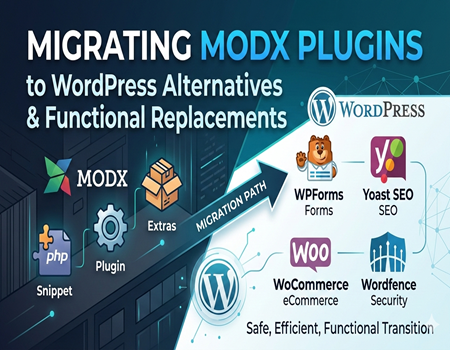
Migrating from MODX to WordPress is a big step for any website owner. While MODX is a flexible and powerful content management system, many businesses today prefer WordPress because of its larger ecosystem, easier usability, wider community support, and thousands of ready-to-use plugins. However, one of the biggest challenges during migration is handling existing MODX plugins, snippets, and extras.
Unlike simple content migration, plugin migration is not a copy-paste process. MODX and WordPress are built on different architectures. That means you cannot directly transfer MODX plugins into WordPress. Instead, you need to find suitable WordPress alternatives that offer the same functionality — or sometimes even better features.
For example, if your MODX website uses plugins for SEO, forms, caching, security, or eCommerce, each of those functionalities must be carefully replaced in WordPress. If this step is ignored, your website may lose important features, performance efficiency, or even search engine rankings.
That’s why planning is extremely important. Before you Migrate website from MODX to WordPress, you must understand how your current plugins work and how they will be recreated in the new system.
In this complete guide, we will walk you through:
- How MODX plugins work
- Why direct transfer is not possible
- How to audit your existing plugins
- The best WordPress alternatives
- SEO precautions during migration
- Common mistakes to avoid
By the end of this article, you will clearly understand how to migrate MODX plugins safely and efficiently — without breaking your website or affecting its performance.
Understanding MODX Plugins (Snippets & Extras)
Before migrating anything, it is important to understand how plugins work in MODX. Unlike WordPress, MODX does not rely heavily on traditional “plugins.” Instead, it uses a flexible system made up of Snippets, Plugins, and Extras. Each plays a different role in adding functionality to a website.
Snippets
Snippets in MODX are small pieces of PHP code that perform specific tasks. They can be used to display dynamic content, process forms, fetch database data, or control page behavior. Many websites use custom snippets, which means the code was written specifically for that project. These custom elements require special attention during migration because they cannot simply be exported to WordPress.
Plugins
MODX plugins are event-driven components. They respond to system events such as page load, content save, or user login. For example, a plugin might modify content before it is displayed or add custom tracking functionality. Since WordPress uses a different hook system, these plugins need to be rebuilt or replaced with suitable WordPress alternatives.
Extras
Extras are installable packages available in the MODX package manager. They usually include combinations of snippets, plugins, templates, and other elements. Popular extras handle features like:
- Contact forms
- SEO management
- Caching
- eCommerce
- Membership systems
- Security enhancements
These extras are similar to WordPress plugins, but they are built specifically for the MODX framework.
When planning to Migrate website from MODX to WordPress, understanding which features are powered by snippets, plugins, or extras helps you map them correctly to WordPress alternatives. Without this clarity, you may miss important functionality during migration.
In short, MODX offers flexibility through custom code and modular components. But that same flexibility makes migration more complex. A proper audit of these elements ensures a smoother and safer transition to WordPress.
Why You Cannot Directly Transfer MODX Plugins to WordPress
One of the most common misconceptions during migration is the belief that MODX plugins can simply be exported and installed in WordPress. Unfortunately, this is not possible. MODX and WordPress are built on completely different system architectures, which makes direct transfer technically incompatible.
Different Core Architecture
MODX is a flexible content management framework that allows developers to build highly customized systems using snippets and event-based plugins. WordPress, on the other hand, follows a standardized structure with themes and plugins designed specifically for its core environment. Because both platforms process code differently, a MODX plugin will not function inside WordPress without redevelopment.
Database Structure Differences
MODX and WordPress store content and settings in different database formats. Tables, relationships, and metadata storage vary significantly. For example, WordPress uses a structured posts and postmeta system, while MODX organizes content in its own unique format. This difference means plugin data cannot be directly mapped without transformation.
Template and Rendering System
MODX uses a flexible templating engine where developers control output using chunks and placeholders. WordPress relies on a theme hierarchy system with template files like header.php, single.php, and page.php. Because of these structural differences, any plugin tied to MODX templates must be reconfigured to work within a WordPress theme.
Event & Hook System Differences
Both systems use hooks and events, but they are implemented differently. MODX plugins respond to specific system events, while WordPress uses actions and filters. The logic behind how and when code executes is not identical, so functionality must be rebuilt rather than copied.
When you decide to Migrate website from MODX to WordPress, the goal is not to transfer plugins directly but to replicate their functionality using suitable WordPress alternatives. This approach ensures compatibility, stability, and long-term maintainability.
Understanding this technical difference early in the migration process helps prevent errors, broken features, and unexpected downtime.
Step-by-Step Process to Audit MODX Plugins Before Migration
Before replacing any plugins, you need a clear audit of your existing MODX setup. Many migration issues happen because website owners skip this step and move directly to WordPress installation. A proper audit ensures that nothing important is lost during the transition.
Here is a simple, step-by-step process you can follow.
Step 1: List All Installed Extras
Go to your MODX package manager and create a full list of installed extras. Include their names, versions, and purpose. This gives you a complete overview of your website’s functionality.
Step 2: Identify Critical vs Optional Plugins
Not every plugin is essential. Separate them into two categories:
Critical plugins
- Forms
- eCommerce functionality
- SEO tools
- Security features
- Payment gateways
Optional plugins
- Minor design enhancements
- Temporary tools
- Unused add-ons
This helps you prioritize what must be replaced immediately.
Step 3: Review Custom Snippets
Custom snippets require special attention. Check whether they:
- Pull dynamic content
- Process form submissions
- Connect to third-party APIs
- Modify page output
Document what each snippet does. You may need to rebuild it as a custom WordPress plugin or replace it with an existing solution.
Step 4: Map Functionality to WordPress Alternatives
Now match each MODX plugin with a WordPress alternative. Focus on functionality, not names. For example, if you use FormIt in MODX, your goal is to replace the form capability — not the plugin itself.
If you plan to Migrate website from MODX to WordPress, this mapping step prevents confusion during implementation.
Step 5: Remove Unused Plugins
Before migration, clean up your MODX installation. Remove outdated or unused plugins. This reduces complexity and makes migration smoother.
Simple Plugin Audit Checklist
- Plugin/Extra Name
- Function
- Critical or Optional
- Custom Code? (Yes/No)
- WordPress Alternative Identified?
- Action Required (Replace/Rebuild/Remove)
Taking time to audit properly saves hours of troubleshooting later. It also ensures your new WordPress website runs efficiently, securely, and without missing features.
Best WordPress Alternatives for Popular MODX Plugins
When migrating from MODX to WordPress, the goal is not to find identical plugins, but to replace functionality with reliable and well-supported alternatives. WordPress has a much larger plugin ecosystem, which gives you more flexibility and long-term stability.
Below are some of the most common MODX features and their recommended WordPress alternatives.
1. Forms: From FormIt to WordPress Form Builders
In MODX, FormIt is commonly used to create contact forms, lead forms, and custom submission forms. In WordPress, you can replace this functionality using:
- WPForms
- Contact Form 7
- Gravity Forms
These plugins allow you to create drag-and-drop forms without coding. They support file uploads, conditional logic, spam protection, and email notifications. For most businesses, WPForms is beginner-friendly, while Gravity Forms is ideal for advanced features.
2. SEO Tools: From MODX SEO Suite to WordPress SEO Plugins
If you used SEO Suite in MODX to manage meta titles, descriptions, and sitemaps, WordPress offers powerful alternatives like:
- Yoast SEO
- Rank Math
- All in One SEO
These plugins help you optimize on-page SEO, generate XML sitemaps, manage schema markup, and improve content readability. They are beginner-friendly and provide real-time SEO suggestions.
If you’re planning to Migrate website from MODX to WordPress, replacing your SEO tools properly is critical to avoid ranking drops.
3. Caching & Performance
MODX handles caching internally, but WordPress often requires dedicated performance plugins. Popular choices include:
- WP Rocket
- W3 Total Cache
- LiteSpeed Cache
These tools improve loading speed through page caching, database optimization, minification, and CDN integration. Since performance directly affects SEO and user experience, this replacement is very important.
4. eCommerce: From MODX Commerce to WooCommerce
If your MODX website uses Commerce for selling products, the best alternative in WordPress is:
- WooCommerce
WooCommerce is highly customizable and supports physical products, digital products, subscriptions, payment gateways, shipping rules, and tax settings. It also integrates with thousands of extensions.
For most businesses, WooCommerce offers more flexibility and scalability compared to MODX Commerce.
5. Security Plugins
Security in MODX may be handled through custom configurations or extras. In WordPress, you can use:
- Wordfence
- Sucuri
- iThemes Security
These plugins offer firewall protection, malware scanning, login protection, and real-time monitoring. WordPress security must not be ignored during migration.
6. Page Building & Layout Control
MODX uses templates and chunks for layout flexibility. In WordPress, you can use page builders such as:
- Elementor
- Divi
- Gutenberg
These tools allow non-technical users to design pages visually without touching code. If your MODX website relied on custom templates, page builders can simplify design management.
Important Tip: Do Not Install Too Many Plugins
One common mistake during migration is installing multiple plugins for the same function. WordPress offers many options, but choosing lightweight and well-supported tools is essential.
Before you Migrate website from MODX to WordPress, always:
- Choose plugins with good reviews
- Check update frequency
- Avoid duplicate functionality
- Test performance impact
The advantage of WordPress is its flexibility, but smart plugin selection ensures your new website remains fast, secure, and easy to manage.
Replacing MODX plugins is not about copying tools — it is about upgrading your website’s ecosystem with scalable, user-friendly WordPress alternatives.
Handling Custom MODX Snippets During Migration
Custom snippets are one of the most important parts of a MODX website. Unlike ready-made extras, snippets are often written specifically for your project. They may control dynamic content, handle business logic, connect to external APIs, or modify page output. Because they are custom-built, they cannot be directly transferred to WordPress.
The first step is identifying all custom snippets in your MODX dashboard. Review what each snippet does and document its purpose clearly. Ask questions like:
- Does it fetch data from the database?
- Does it process form submissions?
- Does it integrate with third-party tools?
- Does it change how content appears on the front end?
Once you understand their functionality, you can decide how to rebuild them in WordPress.
Option 1: Use an Existing WordPress Plugin
Sometimes, custom snippets were created simply because MODX did not have a ready-made solution. In WordPress, you may find a plugin that already handles that functionality. This is the simplest and safest approach.
Option 2: Add Custom Code in functions.php
If the logic is small and simple, it can be added to your WordPress theme’s functions.php file. However, this approach requires careful coding and proper testing to avoid breaking your site.
Option 3: Create a Custom WordPress Plugin
For advanced functionality, the best solution is to develop a custom WordPress plugin. This keeps your code organized and separate from the theme, making it easier to maintain in the long run.
If you plan to Migrate website from MODX to WordPress, never ignore custom snippets. They often contain critical business logic. Poorly migrated custom code can lead to broken features, security issues, or performance problems.
In many cases, hiring an experienced developer for complex snippet migration is a smart investment. A careful rebuild ensures your new WordPress site works smoothly while maintaining all the essential functionality of your original MODX website.
SEO Considerations When Replacing MODX Plugins
SEO is one of the most sensitive areas during any CMS migration. When replacing MODX plugins with WordPress alternatives, you must ensure that your search engine rankings are protected. Even small mistakes can lead to traffic drops, broken pages, or indexing issues.
Preserve URL Structure
One of the first things to check is your existing URL structure. If your MODX website has SEO-friendly URLs, try to keep the same structure in WordPress. Changing URLs without proper redirection can cause 404 errors and ranking loss.
If URL changes are unavoidable, set up proper 301 redirects from old URLs to new ones. This tells search engines that the page has permanently moved and helps preserve link equity.
Migrate Meta Titles and Descriptions
If you were using an SEO plugin in MODX, export all meta titles and descriptions before migration. After installing a WordPress SEO plugin, import or manually add the same metadata. Missing meta information can impact click-through rates from search results.
Recreate Schema Markup
If your MODX setup included structured data (schema), ensure it is recreated in WordPress. Many WordPress SEO plugins provide built-in schema features for articles, products, and local businesses. Recheck this after migration to avoid losing rich snippet visibility.
XML Sitemap & Robots.txt
Generate a new XML sitemap in WordPress and submit it to Google Search Console. Also review your robots.txt file to ensure important pages are not accidentally blocked.
Monitor Rankings After Migration
After you Migrate website from MODX to WordPress, monitor traffic and keyword rankings closely for a few weeks. Use analytics and search console tools to detect errors, crawl issues, or sudden drops.
SEO migration is not just technical — it requires careful planning and verification. By preserving URLs, metadata, and structured data properly, you can move to WordPress without harming your search visibility. In fact, with better WordPress SEO tools, you may even improve your rankings over time.
Common Mistakes to Avoid During Plugin Migration
Migrating plugins from MODX to WordPress requires careful planning. Many website owners rush the process and make avoidable mistakes that lead to broken features, slow performance, or SEO loss. Understanding these common errors can help you avoid unnecessary problems.
Installing Too Many WordPress Plugins
One common mistake is installing multiple plugins for the same functionality. WordPress offers thousands of options, but more plugins do not mean better performance. Too many plugins can slow down your website, create conflicts, and increase security risks. Always choose lightweight, well-maintained plugins.
Ignoring Performance Optimization
After replacing MODX plugins, some users forget to optimize their WordPress website. Without proper caching and performance setup, your site may load slower than before. Test your website speed and configure performance tools properly before going live.
Overlooking Security Setup
MODX and WordPress handle security differently. Simply installing WordPress is not enough. You must configure firewall protection, secure login settings, and regular backups. Ignoring security during migration can expose your website to vulnerabilities.
Not Using a Staging Environment
Making changes directly on a live website is risky. Always test plugin replacements on a staging or development environment first. This allows you to fix errors without affecting visitors.
Skipping Plugin Cleanup
Before you Migrate website from MODX to WordPress, remove unused or outdated plugins from your MODX installation. Migrating unnecessary functionality increases complexity and confusion.
Avoiding these common mistakes ensures a smoother transition. With proper testing, smart plugin selection, and careful planning, your WordPress website can perform even better than your original MODX setup.
Testing & Launch Checklist
Once you have replaced all MODX plugins with suitable WordPress alternatives, the next step is proper testing. Skipping this phase can result in broken forms, missing features, or SEO issues after launch. A structured testing process ensures your website runs smoothly from day one.
Functional Testing
Start by checking all core functionalities:
- Test contact forms and email notifications
- Verify login and registration systems
- Check search functionality
- Test payment gateways and checkout process (if eCommerce)
- Confirm third-party integrations are working
Every replaced plugin should be reviewed carefully.
Design & Responsiveness
Compare the new WordPress website with your original MODX design. Ensure:
- Layout appears correctly on desktop
- Mobile responsiveness works properly
- Images and media load correctly
- No formatting issues are present
Performance Testing
Use speed testing tools to check loading time. If needed, optimize caching, images, and database performance. A slow website can negatively impact user experience and SEO.
SEO & Technical Checks
Before you Migrate website from MODX to WordPress completely, verify:
- All URLs are working
- 301 redirects are properly configured
- Meta titles and descriptions are added
- XML sitemap is generated
- No broken internal links exist
Final Backup Before Launch
Always take a full backup before going live. This gives you a restore point in case something unexpected happens.
A careful testing and launch process reduces risk and ensures your new WordPress website performs efficiently, securely, and without disruption.
When to Hire a Professional Migration Expert
Migrating MODX plugins to WordPress can be manageable for small websites with basic functionality. However, not every project is simple. In certain situations, hiring a professional migration expert is the safest and smartest decision.
Large or Complex Websites
If your website has hundreds of pages, custom templates, or advanced integrations, the migration process becomes more technical. A professional can ensure that no data, functionality, or SEO value is lost during the transition.
Custom-Coded MODX Features
Websites that rely heavily on custom snippets or complex business logic require careful redevelopment in WordPress. Rebuilding this functionality incorrectly can break key operations. An experienced developer understands how to convert custom logic into secure and optimized WordPress solutions.
eCommerce or Membership Sites
If your website handles online payments, subscriptions, or user accounts, precision is critical. Payment gateways, order data, and customer records must be migrated correctly. Even small mistakes can affect revenue and user trust.
High-Traffic or SEO-Dependent Websites
If your business depends on organic traffic, you cannot afford ranking drops. A migration expert ensures proper redirects, metadata preservation, schema setup, and technical SEO alignment.
If you plan to Migrate website from MODX to WordPress and your website plays a crucial role in your business operations, professional help can save time, reduce risk, and prevent costly errors.
Investing in expertise during migration is often more affordable than fixing major issues later.
Conclusion
Migrating MODX plugins to WordPress alternatives may seem complex at first, but with the right planning and structured approach, it becomes a smooth and manageable process. The key is understanding that plugins cannot be directly transferred. Instead, their functionality must be carefully audited, mapped, and replaced with reliable WordPress solutions.
Throughout this guide, we covered how MODX snippets, plugins, and extras work, why direct transfer is not possible, and how to identify the best WordPress alternatives for forms, SEO, caching, security, and eCommerce. We also discussed the importance of handling custom snippets properly and protecting your SEO performance during migration.
If you plan to Migrate website from MODX to WordPress, preparation is your biggest advantage. Conduct a detailed plugin audit, remove unnecessary features, test everything in a staging environment, and monitor performance after launch. Avoid rushing the process, especially if your website supports business-critical operations.
WordPress offers a larger ecosystem, easier management, and long-term scalability. With the right plugin replacements and proper testing, your new website can perform better, load faster, and provide improved user experience compared to your previous MODX setup.
Migration is not just about changing platforms — it is about upgrading your website’s foundation for future growth. With careful execution, you can make the transition confidently and successfully.