Exporting Wix Blog Content Properly
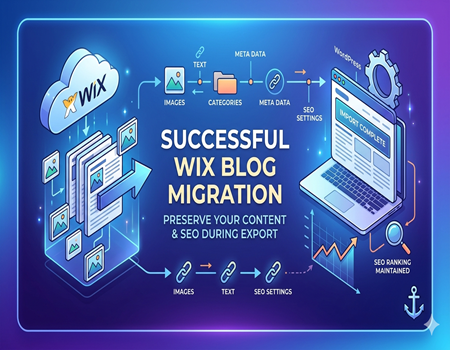
Wix is one of the most popular website builders, loved for its drag-and-drop simplicity and beginner-friendly design. Many bloggers and business owners start their blogs on Wix because it’s quick to set up and doesn’t require coding knowledge. However, as your blog grows, you might feel limited by Wix’s features, design flexibility, or SEO options.
When moving to a more robust platform like WordPress, exporting your Wix blog content properly becomes essential. Improper export can lead to missing images, broken links, and even loss of SEO ranking. Many users underestimate this step, assuming that content will transfer automatically, but Wix doesn’t provide a full direct export option like WordPress.
Properly exporting your content ensures that all your hard work, including blog posts, media files, categories, and metadata, remains intact. This also helps maintain your search engine visibility and provides a smooth transition for your readers. By planning the export carefully, you save time and avoid frustrating errors later.
In this guide, we will walk you through the process of exporting Wix blog content in a structured, step-by-step way. You’ll learn about different export methods, handling images and media, preserving SEO, and importing content into WordPress without losing quality. This information is useful whether you have a small blog or a large website with hundreds of posts.
If you’re planning to move your site completely, this guide will also show how to Migrate Website from Wix to WordPress effectively. By following these steps, you can ensure a seamless migration while keeping your content, design, and SEO intact.
Why Exporting Wix Blog Content Matters
Preserving Your Hard Work
Exporting your Wix blog content properly is crucial to protect all the effort you’ve put into creating posts, images, and formatting. If content is not exported correctly, you could lose media files, categories, or even SEO settings. This can affect your website’s overall look, functionality, and user experience, making it harder to maintain your professional presence online.
Maintaining SEO Performance
One of the biggest reasons to export correctly is to preserve SEO. Search engines index your blog based on URLs, headings, and meta descriptions. Any broken links, missing images, or altered structure after migration can lower your rankings. A careful export helps maintain your search visibility and ensures your blog continues to perform well in Google search results.
Saving Time and Effort
Proper export saves a lot of time during migration. When content is organized and ready, you avoid manually copying posts or fixing errors later. This is especially important for blogs with a large number of posts or media files. Manual handling of hundreds of entries can be tedious, error-prone, and highly inefficient, so preparation is key.
Preserving Media and Formatting
A well-planned export ensures all media files such as images, videos, and PDFs move along with the content. Missing media not only disrupts the visual appeal but can also harm SEO, as search engines value images and videos for ranking. Maintaining formatting and media integrity gives readers a consistent experience on your new platform.
Preparing for Platform Migration
Finally, exporting correctly gives you full control over your data, especially if you are moving to WordPress for better flexibility and features. Having content fully prepared ensures a smoother migration process. For guidance on moving your site effectively, check our guide on Migrate Website from Wix to WordPress.
Understanding Wix Blog Limitations
Wix is a beginner-friendly platform, but it has some limitations when it comes to blogging. Unlike WordPress, Wix doesn’t allow a full XML export of blog content. This makes moving your content to another platform a bit tricky. Understanding these limitations helps you plan your export and migration process carefully.
One major limitation is the way Wix stores blog posts and media. Images, videos, and PDFs are often embedded in a way that doesn’t export easily. Categories and tags may not transfer automatically, requiring extra work to organize content on a new platform. Without proper planning, you may lose the structure of your blog.
Another restriction is SEO control. Wix offers basic SEO settings, but the URL structure and meta information may not always match the standards of WordPress. If you don’t handle this during export, your search engine ranking can be affected, leading to a drop in traffic after migration.
Additionally, Wix doesn’t provide direct access to your database. This means you can’t export content in bulk the way WordPress allows. For larger blogs, this limitation can make manual export tedious and time-consuming, especially if you have hundreds of posts or media files.
Finally, knowing these limitations helps you choose the right export method. You can decide whether to use RSS feed export, manual copy-paste, or a third-party migration tool. Being aware of Wix’s constraints ensures you preserve your content, maintain SEO, and have a smoother transition if you plan to Migrate Website from Wix to WordPress in the future.
Methods to Export Wix Blog Content
Exporting Wix blog content can be challenging, but there are several methods to do it effectively. Choosing the right method depends on the size of your blog, the amount of media, and your technical comfort level. Let’s explore the most common ways to export Wix blog content.
Manual Copy-Paste Method
For smaller blogs, the simplest way is manual copy-paste. You can open each blog post in Wix, copy the text, and paste it into a WordPress post. While this method is straightforward, it can be time-consuming if your blog has dozens or hundreds of posts.
Make sure to maintain formatting when copying content. Headings, bullet points, and links should be recreated in WordPress to match the original post. You will also need to download and re-upload media files like images and videos separately. This method works well for blogs with fewer posts but becomes impractical for larger sites.
RSS Feed Export Method
A more efficient method is using Wix’s RSS feed. Every Wix blog has an RSS feed that lists all published posts. You can access this feed by adding /feed.xml at the end of your Wix blog URL. Once you have the RSS feed, you can import it directly into WordPress using the built-in RSS importer.
This method helps transfer multiple posts at once, saving time compared to manual copy-paste. However, it may not transfer images, categories, or SEO metadata perfectly. After importing, you may need to fix formatting, reassign categories, and re-upload media. Despite some limitations, this method is ideal for medium-sized blogs.
Using Third-Party Migration Tools
Several third-party tools and services can automate the migration process. Tools like CMS2CMS or specialized Wix-to-WordPress services can export posts, images, categories, tags, and even some SEO settings. These tools are particularly useful for large blogs where manual methods would be inefficient.
The main advantage of third-party tools is time-saving and reduced errors. However, they may come with a cost and may not be 100% accurate, so it’s important to review imported content carefully. Some manual adjustments are almost always necessary.
Tips for a Smooth Export
Regardless of the method, always backup your Wix blog before starting the export. This ensures you have a copy of your content in case something goes wrong. Organize your media files and keep track of your post categories to make the import easier.
Also, consider your future SEO strategy. Maintaining URLs, slugs, and meta descriptions will help preserve your search engine ranking. If your goal is a full platform switch, follow a structured plan to Migrate Website from Wix to WordPress, ensuring all posts, media, and SEO settings are transferred correctly.
Handling Media Files (Images, Videos, PDFs)
When exporting your Wix blog, media files like images, videos, and PDFs require special attention. Unlike text content, media is often embedded directly in posts, making it harder to transfer automatically. Missing media can disrupt your post layout and affect the user experience, so handling it carefully is essential.
Start by creating a backup of all your media files from Wix. You can download images and videos individually from your Wix dashboard. Organize these files in folders corresponding to each blog post to make it easier to re-upload them in WordPress. This will save you time and prevent confusion during the import process.
Maintaining image quality and file names is also important for SEO. Rename images with descriptive names and include relevant keywords if possible. Alt text should be copied over or recreated in WordPress to ensure accessibility and SEO benefits. Properly formatted images enhance user experience and help maintain search engine ranking.
Videos and PDFs also need careful handling. If videos are hosted externally, ensure links are updated in the new platform. For PDFs, download each file and re-upload it to WordPress, checking that embedded links or references remain functional.
Finally, organizing your media before import ensures a smoother transition when you Migrate Website from Wix to WordPress. By keeping files structured and properly labeled, you reduce the risk of missing content, broken links, or SEO loss. Proper media management is a small step that has a big impact on your website’s functionality and user experience.
Preserving SEO During Export
Preserving SEO is one of the most critical steps when exporting your Wix blog. Your content’s search engine ranking depends on URLs, headings, meta descriptions, and images. If these elements are not maintained, your website may see a drop in organic traffic and visibility. Proper planning ensures that your posts retain their SEO value after migration.
Maintaining URL Structure
Wix uses its own URL format that may not match WordPress. Before exporting, make a list of all blog post URLs. When importing into WordPress, recreate the URLs or set up 301 redirects for changed links. This ensures visitors and search engines are directed to the correct pages, preserving SEO value and avoiding broken links.
Preserving Meta Titles and Descriptions
Meta titles and descriptions are vital for search engines and user clicks. Losing these during migration can reduce click-through rates. Create a spreadsheet listing each post’s meta title and description. During import, manually add them in WordPress to maintain SEO performance and ensure your pages appear correctly in search results.
Handling Images and Alt Text
Images contribute to SEO through file names and alt text. Ensure all images are downloaded from Wix with descriptive file names. Copy the alt text or recreate it in WordPress. This helps search engines understand your content and improves accessibility for users with disabilities. Proper image handling keeps your site visually consistent and SEO-friendly.
Internal Linking and Redirection
Check all internal links before and after migration. Broken links can harm user experience and search rankings. Update links to point to the correct new WordPress URLs. For guidance on a full platform switch while preserving SEO, refer to our steps to Migrate Website from Wix to WordPress, ensuring a smooth and SEO-friendly transition.
Submitting to Search Engines
After migration, submit your WordPress site to Google Search Console. This helps search engines crawl and index your content quickly. By preserving URLs, meta information, images, and internal links, you maintain your website’s search visibility and provide a seamless experience for users.
Importing Your Content to WordPress
After exporting your Wix blog, the next step is importing your content into WordPress. This process can be straightforward if done carefully, ensuring all posts, media files, and formatting remain intact. Choosing the right method and following step-by-step instructions helps prevent errors and preserves SEO.
Using WordPress Importer Plugin
The easiest way to import content is through the WordPress Importer plugin. This built-in tool allows you to upload RSS feed files exported from Wix. Once installed, the plugin walks you through selecting the file, assigning authors, and importing content. It’s suitable for medium-sized blogs and reduces manual work.
Importing Media Files
Media files like images, videos, and PDFs need special attention. WordPress may not automatically import all media from your RSS feed, so you should manually upload missing files. Organize them in folders corresponding to each post to maintain consistency. Ensure alt text and file names are preserved to retain SEO benefits.
Fixing Formatting and Categories
After importing, check all posts for formatting issues. Headings, lists, and links may need adjustment. Assign posts to appropriate categories and tags to maintain the original blog structure. This step ensures your WordPress blog mirrors the Wix version in design and navigation.
Updating Internal Links
Internal links often break during migration. Review all links in posts and pages to ensure they point to the correct new WordPress URLs. Updating links maintains SEO and improves user experience. This is a crucial step, especially for blogs with extensive internal linking.
Final Checks and SEO Considerations
Before publishing, verify that all posts, images, and media display correctly. Re-add meta titles and descriptions for each post. Set up 301 redirects for any URL changes. For a smooth and SEO-friendly transition, follow our detailed guide on Migrate Website from Wix to WordPress, which covers full migration strategies.
Post-Migration Checklist
After migrating your Wix blog to WordPress, it’s essential to perform a thorough post-migration check. This ensures that all content, media, and SEO elements are correctly imported, and your website functions smoothly. Skipping this step can lead to broken links, missing images, or reduced search engine rankings.
Verify Content Formatting
Go through each blog post and page to confirm that formatting has been preserved. Check headings, bullet points, lists, and embedded content. Sometimes RSS import or manual copy can alter text alignment or spacing. Fixing these issues early ensures your readers have a seamless experience.
Check Internal and External Links
Internal links may break during migration if URLs have changed. Test all links in your posts and pages to confirm they point to the correct destinations. Update any broken links to maintain SEO value. External links should also be verified to ensure they remain valid and functional.
Ensure Images and Media Display Properly
Check that all images, videos, and PDFs display correctly on each page. Missing or incorrectly formatted media can disrupt the user experience. Re-upload any missing files and ensure alt text is in place for SEO and accessibility benefits.
Review SEO Settings
Verify that meta titles, descriptions, and slugs have been imported or recreated accurately. Set up 301 redirects for any changed URLs to preserve search engine rankings. Double-check that keyword-rich content remains optimized for search engines.
Test Website Functionality
Finally, browse your website as a user would. Check navigation menus, buttons, and overall page responsiveness. Make sure the website loads quickly and functions correctly on mobile and desktop. For additional guidance on ensuring a smooth migration while maintaining SEO, refer to our guide on Migrate Website from Wix to WordPress.
Tips for a Smooth Wix to WordPress Migration
Migrating your Wix blog to WordPress can seem complicated, but following a few simple tips can make the process much easier. Proper planning ensures that your content, media, and SEO remain intact while reducing errors and downtime.
Plan Your Migration in Advance
Before starting, create a detailed plan of all your posts, pages, media files, and SEO settings. Knowing exactly what needs to be exported and imported helps prevent content loss. Organize your files and make backups to ensure nothing is accidentally deleted during the migration.
Backup Everything
Always backup your Wix blog before exporting. This includes all posts, images, videos, PDFs, and meta information. A complete backup acts as a safety net, allowing you to restore your content if anything goes wrong during the transfer to WordPress.
Focus on SEO and URLs
Maintaining SEO is critical. Preserve your post URLs, meta titles, descriptions, and alt text for images. Set up 301 redirects for any URLs that change. This ensures your search engine rankings remain intact and visitors can find your content without encountering broken links.
Check Media and Formatting
After import, verify that all images, videos, and PDFs display correctly. Reassign categories and tags as needed. Ensure headings, bullet points, and links are consistent with your original Wix blog to provide a seamless experience for readers.
Consider Professional Help for Large Blogs
If your blog has hundreds of posts or complex media, using professional migration tools or services can save time and reduce errors. For a comprehensive guide to a full migration while preserving SEO and content structure, refer to our steps to Migrate Website from Wix to WordPress.
Conclusion
Exporting your Wix blog content properly is crucial for maintaining your hard work, SEO, and overall website functionality. Careful planning and execution ensure that posts, media, and formatting are preserved during migration. Skipping steps or handling content carelessly can lead to broken links, missing media, and reduced search engine rankings.
By understanding Wix’s limitations and following structured methods—whether manual copy-paste, RSS feed export, or using third-party tools—you can move content efficiently. Handling images, videos, PDFs, and maintaining alt text and file names is equally important for SEO and accessibility.
Post-migration checks, including verifying content formatting, internal links, media display, and SEO settings, help ensure a smooth transition. Planning, backups, and attention to detail make the process faster and less error-prone.
For anyone considering a platform switch, following a structured migration strategy is key. Our guide on bold Migrate Website from Wix to WordPress provides detailed steps to ensure a seamless transition while maintaining content integrity and search engine visibility. With proper execution, your blog can continue growing and performing well on WordPress without losing any of the value you built on Wix.