Liferay to WordPress Migration: What Transfers and What Doesn’t
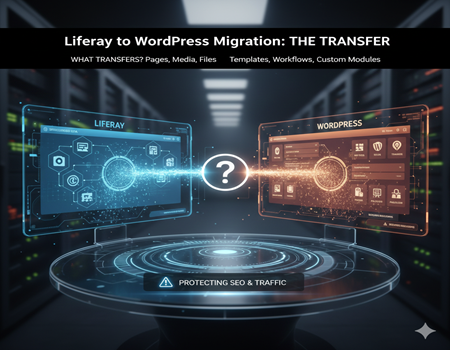
Many businesses originally built their websites on enterprise platforms like Liferay because they needed control, integrations, and structured portals. Over time, however, the role of websites has changed. Instead of acting only as information systems, websites now function as marketing engines that attract visitors, educate them, and convert them into customers.
Because of this shift, companies often consider moving to WordPress, a platform designed for publishing speed and SEO growth. But migration brings fear. Organizations worry about losing search rankings, breaking pages, or damaging years of content investment.
One of the biggest misconceptions is assuming migration means simply copying content from one system to another. In reality, Liferay and WordPress work very differently. Some elements transfer easily, while others must be rebuilt carefully.
This guide explains exactly what moves successfully during migration, what does not, and what needs special attention. By the end, you will clearly understand how migration works and how to protect your traffic and user experience.
Why Businesses Migrate from Liferay to WordPress
Most migrations do not happen because the old platform is bad. They happen because business goals change.
Liferay is excellent for enterprise portals, internal dashboards, and structured experiences. However, content-driven growth requires speed and flexibility. Marketing teams need to publish articles quickly, optimize pages frequently, and update information without developer dependency.
In Liferay environments, even small changes may require technical assistance. This slows campaigns and reduces experimentation. Over time, marketing teams cannot keep up with competitors publishing content daily.
Cost is another major factor. Enterprise platforms require ongoing technical maintenance, upgrades, and server management. WordPress reduces this operational overhead while allowing faster content expansion.
SEO growth also plays a role. Businesses focusing on organic traffic need easier control over URLs, metadata, schema, and page optimization. WordPress supports this directly inside the dashboard.
Ultimately, companies move not because Liferay fails, but because their website becomes a growth channel rather than a system portal.
Understanding the Difference in Architecture
Before migration, it is important to understand why content cannot simply be copied.
Liferay stores content in structured formats. Pages are built using templates, fragments, and dynamic modules connected to databases. Many visible pages are actually assembled from multiple backend components.
WordPress uses a simpler structure. Content is stored as posts, pages, and taxonomies. The front-end design is separate from the stored content.
Because of this difference, direct database transfer is impossible. A page that looks simple on Liferay may actually contain dynamic blocks, widgets, and application logic that do not exist in WordPress.
Migration therefore requires mapping:
- Structured content → posts/pages
- Dynamic fields → custom fields
- Modules → plugins or static sections
Without proper mapping, pages may appear broken or incomplete after transfer.
Migration is not a file transfer. It is a structured transformation.
What Transfers Successfully
Many businesses are relieved to know that most visible content can be moved.
Page Content
Text content transfers easily after extraction and formatting adjustments.
Blog Articles
Blog posts typically migrate well once mapped into WordPress posts.
Images and Media
Media libraries can be exported and imported while preserving file references.
Basic Metadata
Page titles and descriptions can be transferred during import processes.
Categories
Content grouping can be recreated using WordPress categories and tags.
Downloadable Files
PDFs, documents, and resources can be migrated and relinked.
User-Visible Content
Anything static users can read usually transfers successfully.
Migration methods may include automated scripts, APIs, or structured manual import. The key requirement is proper mapping to avoid formatting errors.
In short, the content itself is safe. The challenge lies in structure and functionality.
What Does NOT Transfer Automatically
This is where most projects face difficulty.
Templates and Layouts
Liferay page templates cannot be reused. WordPress design must be recreated.
Workflows
Approval chains and publishing workflows are platform-specific.
User Roles and Permissions
Access structures differ significantly and must be reconfigured.
Custom Modules
Any built-in application features require redevelopment or plugin replacement.
Dynamic Content Structures
Structured fields must be rebuilt using custom fields.
Dashboards and Portals
User dashboards generally cannot be migrated directly.
Personalization
Behavior-based content logic must be recreated.
Search Configuration
Search indexing rules require new setup.
Essentially, functionality moves conceptually, not technically. It must be rebuilt in a WordPress-compatible way.
SEO Elements: What Needs Special Attention
SEO protection is the most critical migration task.
URL Structure
URLs often change and require mapping.
301 Redirects
Every old URL must point to its new version.
Canonical Tags
Prevent duplicate content after launch.
Schema Markup
Structured data must be reimplemented.
XML Sitemap
A new sitemap must be generated and submitted.
Robots.txt
Crawling rules need recreation.
Indexing Validation
Search engines must understand the new structure.
Without these steps, rankings can drop even if content is intact.
Design & UX Migration
Design is recreated, not copied.
The new WordPress site should maintain brand identity while improving usability. Page builders and themes help rebuild layouts more efficiently than enterprise templates.
Migration is an opportunity to simplify navigation, improve readability, and enhance mobile experience.
Performance Improvements After Migration
WordPress typically improves speed because it removes heavy portal architecture.
With caching, CDN integration, and optimized hosting, pages load faster. Faster load times improve Core Web Vitals and user experience, which positively impacts rankings and engagement.
Migration Checklist
- Audit existing content
- Map all URLs
- Prepare staging environment
- Import content
- Implement redirects
- Validate SEO settings
- Monitor after launch
Following this checklist prevents traffic loss and technical errors.
Common Migration Mistakes to Avoid
- Launching without redirects
- Migrating outdated pages
- Forgetting internal links
- Allowing staging site indexing
- Ignoring metadata transfer
These mistakes cause ranking drops more often than migration itself.
When to Consider Professional Migration Help
Migration complexity depends on site size and structure. Large enterprise websites contain dynamic content, integrations, and SEO history that require careful handling.
Businesses often choose to Migrate Website From Liferay to WordPress with professional support to protect search rankings, maintain data integrity, and avoid downtime during launch.
Expert planning reduces risk and ensures continuity.
Final Thoughts
Migration is not about abandoning an old system. It is about aligning the platform with current business goals.
Liferay supports structured enterprise ecosystems. WordPress supports scalable digital growth. Understanding what transfers and what requires rebuilding allows companies to plan confidently.
With proper preparation, migration becomes a controlled transformation rather than a risky change. The result is a faster, easier-to-manage website built for long-term visibility and continuous content expansion.